
Overview and Definition of Keyboard Shortcuts
A keyboard shortcut is a sequence or combination of keystrokes on a computer keyboard which invokes commands in software [1]. These shortcuts serve as an alternative way to perform actions typically done with a mouse, enhancing efficiency for users across different computing tasks [4]. The fundamental mechanism involves pressing a single key or a sequence of keys, with some requiring the simultaneous press of multiple keys indicated by the plus sign [1].
Historical Evolution and Development
The concept of keyboard shortcuts emerged alongside graphical user interfaces, with early implementations designed to reduce mouse dependency. Over decades, operating systems expanded shortcut libraries to include text editing, system navigation, and application-specific commands. The evolution reflects changing user needs from basic document creation to complex multimedia production and entertainment workflows.
Core Functional Categories
Keyboard shortcuts organize into distinct categories based on function: text editing commands, system navigation, application-specific operations, and accessibility features. Each category serves different user scenarios, from quick document formatting to complex system management. The categorization helps users memorize and apply shortcuts relevant to their primary computing activities.
Text Editing Shortcuts and Commands
Selection and Modification Commands
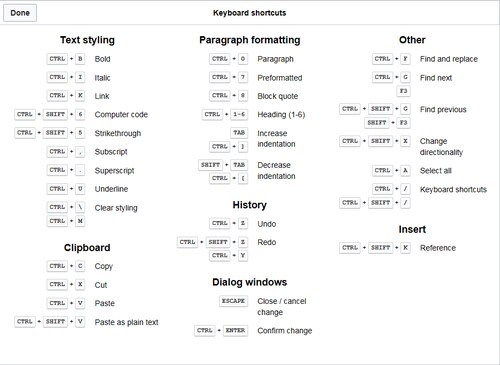
Text editing shortcuts form the backbone of efficient document creation. Select all with Ctrl+A, apply bold formatting with Ctrl+B, italic with Ctrl+I, and underline with Ctrl+U [4]. These basic formatting commands enable rapid text styling without menu navigation. The copy, cut, and paste triad of Ctrl+C, Ctrl+X, and Ctrl+V represents the most frequently used shortcut combinations in daily computing [4].
Cursor Movement and Word Navigation
Advanced cursor movement enhances editing precision. Ctrl+Backspace deletes words to the left of the cursor while Ctrl+Delete removes words to the right [4]. For word-by-word navigation, Ctrl+Left arrow moves the cursor backward to the beginning of the previous word, and Ctrl+Right arrow moves forward to the next word [4]. These commands significantly reduce editing time compared to character-by-character movement.
Document Navigation and Find Operations
For longer documents, paragraph and document-level navigation proves essential. Ctrl+Up arrow and Ctrl+Down arrow move the cursor backward or forward to the beginning of the previous or next paragraph respectively [4]. Ctrl+Home transports the cursor to the beginning of the document, while Ctrl+End moves to the end [4]. The find functionality via Ctrl+F locates specific text, and Ctrl+H finds and replaces text throughout the document [4].
Windows System Shortcuts and Navigation
Start Menu and Task Management
Windows key shortcuts provide direct access to system functions. The Windows key opens the Start menu, while combinations like Windows key + Tab access Task View for virtual desktop management [4]. These shortcuts enable rapid switching between applications and system features without reaching for the mouse. The taskbar also supports shortcuts for switching between pinned applications and accessing frequently used system features [4].
File Explorer and File Management
File Explorer shortcuts facilitate navigation and file management within the file system. These commands allow users to navigate directory structures, manage files, and perform common operations like renaming, deleting, and moving items without mouse interaction. The shortcut hierarchy includes address bar navigation, folder expansion, and common task execution.
Desktop and Power Management
Desktop shortcuts cover system navigation, power management, and screenshot functions. Key combinations enable quick access to the desktop, system settings, and power options. Screenshot shortcuts capture screen content for sharing or documentation. Power management shortcuts provide quick access to sleep, shutdown, and restart functions without traversing multiple menu layers.
Application-Specific Shortcut Behaviors
Variations Across Software Applications
The behavior of some keyboard shortcuts may vary in different applications [4]. This variability stems from developers implementing unique command mappings for their specific software contexts. A shortcut that functions in one application may produce different or no results in another, requiring users to learn application-specific combinations for optimal workflow.
Plain Text Paste and Special Commands
Ctrl + Shift + V to paste as plain text may not work in all applications [4]. This limitation exists because not all software supports the plain text paste command, and some may interpret the shortcut differently or assign it to alternative functions. Users encountering this issue may need to use alternative methods like paste special or edit menu options.
Copilot and AI Assistance Shortcuts
Copilot key shortcuts include opening Microsoft Copilot or Microsoft 365 Copilot, and opening or closing Windows search [4]. These AI-assisted commands represent the latest evolution in keyboard shortcut design, integrating artificial intelligence capabilities directly into the keyboard interface. The Copilot key serves as a dedicated access point for AI assistance functions across Windows 11 and Windows 10 systems [4].
Accessibility and Customization Options
Disabling Shortcuts in Windows
In Windows, it is possible to disable these shortcuts using the Accessibility or Ease of Access control panel [1]. This feature proves valuable for users who accidentally trigger shortcuts or prefer custom key mappings. The Ease of Access settings provide granular control over which shortcuts remain active and which get disabled, accommodating different user preferences and accessibility needs.
GNOME and Universal Access Features
In GNOME, these shortcuts are possible if Universal Access is enabled on the system [1]. This accessibility framework ensures that keyboard shortcuts remain functional for users with different abilities. The Universal Access features demonstrate how operating systems adapt shortcut functionality to support diverse user needs and computing environments.
Keyboard Layout Dependencies
Keyboard shortcuts may depend on your keyboard layout [1]. The same key combination may produce different results or have different effects depending on the physical layout and language configuration of the keyboard. Users switching between layouts or using international keyboards must verify that their preferred shortcuts function correctly in the new configuration.
Command Prompt and Terminal Shortcuts
Command Execution and Navigation
Command prompt shortcuts enable command execution and navigation within the Windows terminal. These specialized shortcuts differ from standard application shortcuts, focusing on text manipulation, command history access, and rapid directory navigation. The terminal environment requires specific key combinations for efficient command-line interaction.
Dialog Box and Form Navigation
Dialog box shortcuts assist with form navigation and command execution in application settings [4]. These commands enable users to traverse form fields, activate buttons, and execute commands without mouse interaction. The tab navigation, activation shortcuts, and field-specific commands streamline configuration and settings management across applications.
Multiple Desktop and Window Organization
Multiple desktop shortcuts manage virtual desktop switching and window organization [4]. These commands allow users to create, switch between, and organize virtual desktops for different tasks or projects. The window management capabilities enhance multitasking efficiency and help maintain focused work environments across multiple virtual spaces.
Entertainment and Media Applications
Media Player and Audio Shortcuts
Entertainment applications leverage keyboard shortcuts for media control and audio management. Media player shortcuts enable play/pause, track skipping, volume adjustment, and playback speed control without reaching for on-screen controls. These commands integrate with system audio settings and provide quick access to common media functions during entertainment consumption.
Gaming and Interactive Applications
Gaming and interactive software often implement custom keyboard shortcuts for game controls, menu navigation, and quick actions. These shortcuts may conflict with system commands or other applications, requiring careful configuration. The gaming industry's evolution has seen increased integration of keyboard shortcuts for accessibility, streaming, and competitive play scenarios.
Creative Production and Production Workflows
Creative software for video editing, graphic design, and audio production relies heavily on keyboard shortcuts for efficient workflow execution. Production shortcuts span timeline navigation, tool selection, effect application, and rendering commands. The density of available shortcuts in creative applications often exceeds standard operating system shortcuts, reflecting the power user expectations of professional creative tools.
Timeline of Key Developments and Milestones
Early Implementation and Standardization
The standardization of keyboard shortcuts began with early graphical operating systems, establishing the fundamental Ctrl+C, Ctrl+V, Ctrl+X text editing triad that remains unchanged decades later [4]. This foundational set became universally recognized and forms the basis for all subsequent shortcut expansions. The consistency of these basic commands across different software demonstrates their effectiveness and user acceptance.
Operating System Expansions
Windows systems progressively expanded their shortcut libraries from basic text commands to comprehensive system navigation, accessibility features, and application-specific combinations [4]. Each Windows version introduced new shortcuts while maintaining backward compatibility with established combinations. The evolution reflects Microsoft's response to user feedback and changing computing paradigms.
Modern AI Integration
The introduction of Copilot key shortcuts represents the latest milestone in keyboard shortcut evolution, integrating artificial intelligence assistance directly into the keyboard hardware [4]. This development signals the direction of future shortcut design, where AI capabilities become integral to the user interface. The Copilot key's functionality for opening Microsoft Copilot, Microsoft 365 Copilot, and Windows search demonstrates this integration trend.
Reception and User Adoption Patterns
Productivity Benefits and User Preferences
Users report significant productivity gains from consistent keyboard shortcut usage, with power users demonstrating higher efficiency in document creation, system management, and application navigation [4]. The learning curve initial investment yields long-term time savings, particularly for users engaged in repetitive computing tasks. User adoption patterns show that familiarity with shortcut combinations correlates with reported satisfaction and efficiency.
Accessibility and Inclusive Design
The ability to disable shortcuts through Accessibility settings and the requirement of Universal Access in some systems like GNOME demonstrates the role of keyboard shortcuts in inclusive design [1]. These features ensure that users with different abilities can customize or enable shortcut functionality according to their needs. The accessibility considerations reflect broader trends in software design toward universal usability.
Application Compatibility Challenges
The variability of shortcut behavior across different applications creates learning challenges and occasional frustration when switching between software environments [4]. Users must reacquaint themselves with command combinations when transitioning between different applications, particularly when shortcuts like Ctrl+Shift+V for plain text paste fail to function as expected. These compatibility issues represent an ongoing consideration for software developers and power users alike.
Significance and Future Directions
Cultural and Workflow Impact
Keyboard shortcuts have become embedded in computing culture, with certain combinations achieving near-universal recognition across user communities [4]. The Ctrl+C and Ctrl+V commands exemplify how specific shortcuts transcend their original software contexts to become shared digital conventions. This cultural integration demonstrates the lasting impact of well-designed shortcut systems on how people interact with technology.
Emerging Technologies and Adaptation
As computing devices evolve toward touch, voice, and gesture interfaces, keyboard shortcuts adapt rather than disappear, maintaining their relevance as efficient command mechanisms [4]. The persistence of keyboard shortcuts alongside new input methods suggests their fundamental value in human-computer interaction. Future developments may see shortcut integration with AI assistants, contextual command suggestions, and adaptive learning based on user behavior patterns.
Ongoing Development and Community Feedback
Operating system maintainers and software developers continue to expand and refine shortcut libraries based on user feedback and evolving computing needs [4]. The balance between adding new functionality and maintaining backward compatibility remains a central consideration. Community-driven shortcut discovery and sharing continues to influence how these command systems evolve and spread across different user communities.